Connecting to Browsers
Instead of launching a new browser, connect to one that's already running.
Connect by channel name
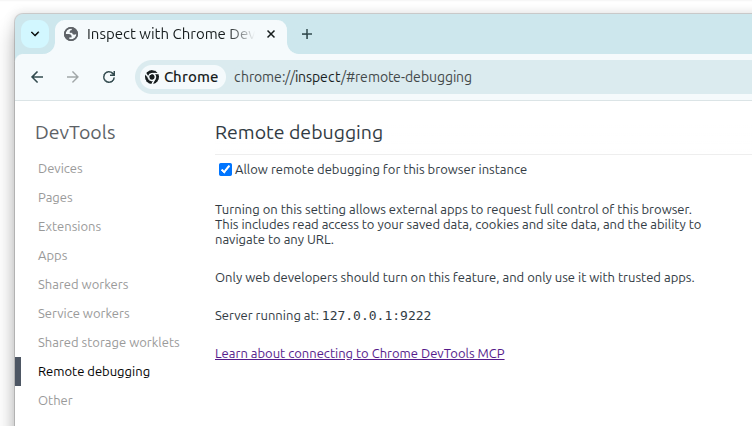
Connect to a running Chrome or Edge by its channel name. Navigate to chrome://inspect/#remote-debugging in the target browser and enable "Allow remote debugging for this browser instance".
{
  "mcpServers": {
    "playwright": {
      "command": "npx",
      "args": ["@playwright/mcp@latest", "--cdp-endpoint=chrome"]
    }
  }
}
Supported channels: chrome, chrome-beta, chrome-dev, chrome-canary, msedge, msedge-beta, msedge-dev, msedge-canary.
This is the simplest way to connect — no need to start Chrome with special flags or know the debugging port.
Connect via CDP endpoint
Connect to any Chromium-based browser with a Chrome DevTools Protocol endpoint:
{
  "mcpServers": {
    "playwright": {
      "command": "npx",
      "args": ["@playwright/mcp@latest", "--cdp-endpoint=http://localhost:9222"]
    }
  }
}
Or in the config file:
{
  "browser": {
    "cdpEndpoint": "http://localhost:9222"
  }
}
Works with Chrome/Chromium started with --remote-debugging-port, Edge, Electron apps, and cloud browser services.
Connect to a Playwright server
To attach to a browser already running behind a Playwright server, use --endpoint:
{
  "mcpServers": {
    "playwright": {
      "command": "npx",
      "args": ["@playwright/mcp@latest", "--endpoint=ws://localhost:3000/"]
    }
  }
}
In the config file this is browser.remoteEndpoint.
Connect via browser extension
The Playwright Extension connects to your existing browser tabs, reusing your logged-in sessions, cookies, and installed extensions.
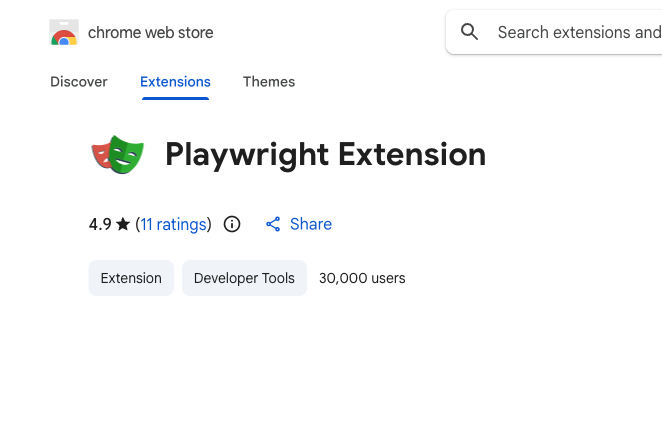
- Install the extension in Chrome or Edge
- Configure the MCP server:
{
  "mcpServers": {
    "playwright": {
      "command": "npx",
      "args": ["@playwright/mcp@latest", "--extension"]
    }
  }
}
By default the extension attaches to the last used browser profile that has the extension installed. Use --profile-dir-name to pick a specific one:
["@playwright/mcp@latest", "--extension", "--profile-dir-name=Profile 1"]
When to use extension mode
- SSO / 2FA — skip complex login flows by reusing your authenticated session
- Browser extensions — interact with pages that depend on installed extensions
- Existing tabs — automate pages you already have open