Attach & Detach
Connect to an existing browser instead of launching a new one.
Commands
| Command | Description |
|---|---|
attach <name> | Attach to a bound Playwright browser by name |
attach --cdp=<channel> | Connect to a running browser by channel name |
attach --cdp=<url> | Connect via Chrome DevTools Protocol endpoint |
attach --endpoint=<url> | Connect to a Playwright server endpoint |
attach --extension | Connect via Playwright Extension (defaults to Chrome) |
attach --extension=<channel> | Connect via Playwright Extension to a specific channel |
detach | Tear down the session, leaving the external browser running |
Exactly one target may be given — combining a positional name with --cdp, --endpoint, or
--extension is an error.
Finding something to attach to
playwright-cli list --all
Alongside the open sessions, this lists the Playwright browser servers bound in any workspace and
the local Chrome/Edge profiles it found, each with the exact attach command to use:
### Browsers available to attach via CDP
- chrome:
  - data-dir: /Users/me/Library/Application Support/Google/Chrome
  - attach (extension): `playwright-cli attach --extension=chrome`
  - attach (remote debugging): enable at chrome://inspect/#remote-debugging
Attach by channel name
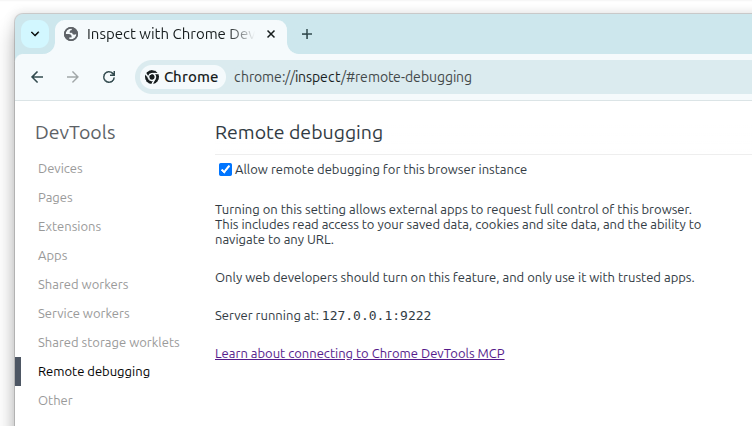
Connect to a running Chrome or Edge instance by its channel name. The browser must have remote debugging enabled — navigate to chrome://inspect/#remote-debugging in the target browser and check "Allow remote debugging for this browser instance".
# Attach to Chrome
playwright-cli attach --cdp=chrome

# Attach to Chrome Canary
playwright-cli attach --cdp=chrome-canary

# Attach to Microsoft Edge
playwright-cli attach --cdp=msedge

# Attach to Edge Dev
playwright-cli attach --cdp=msedge-dev
Supported channels: chrome, chrome-beta, chrome-dev, chrome-canary, msedge, msedge-beta, msedge-dev, msedge-canary.
This is the simplest way to connect — no need to start Chrome with special flags or know the debugging port.
CDP endpoint
Connect to any Chromium-based browser with a Chrome DevTools Protocol endpoint:
# Start Chrome with remote debugging
google-chrome --remote-debugging-port=9222

# Connect from the CLI
playwright-cli attach --cdp=http://localhost:9222
playwright-cli snapshot
playwright-cli click e5
Works with:
- Chrome / Chromium with
--remote-debugging-port - Edge with remote debugging
- Electron apps exposing CDP
- Cloud browser services (Browserbase, etc.)
Playwright server endpoint
Connect to a remote Playwright server:
playwright-cli attach --endpoint=ws://localhost:3000
playwright-cli snapshot
Attach by bound name
A Playwright browser can bind itself under a name — this is how npx playwright test --debug=cli
exposes a paused test. Pass the name as a positional argument:
playwright-cli attach tw-a3f19c
See Test Debugging.
Browser extension
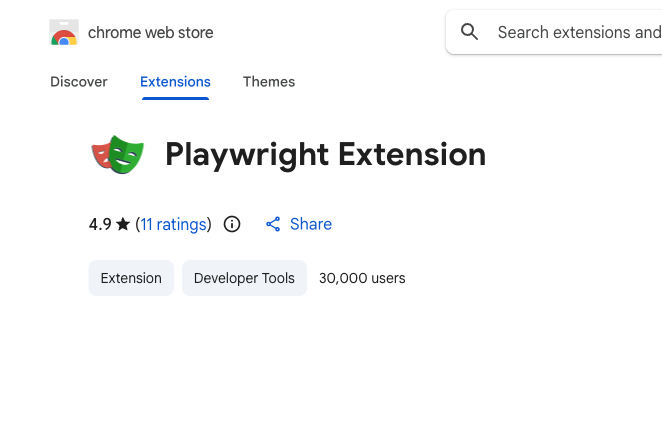
Connect to your existing browser tabs using the Playwright Extension. This lets you reuse your logged-in sessions, cookies, and installed extensions.
# Attach to Chrome (default)
playwright-cli attach --extension

# Attach to a specific channel
playwright-cli attach --extension=chrome-canary
playwright-cli attach --extension=msedge
playwright-cli attach --extension=msedge-dev
If no channel is specified, the extension attaches to Chrome by default.
When to use extension mode
- SSO / 2FA — skip complex login flows by reusing your authenticated session
- Browser extensions — interact with pages that depend on installed extensions
- Existing tabs — automate pages you already have open
Session naming
Attach creates a session. When --session is not given, the session is named after the target —
--cdp=msedge creates a session called msedge, and attach tw-a3f19c creates one called
tw-a3f19c — so parallel attaches to Chrome and Edge don't collide on default.
playwright-cli attach --cdp=chrome -s=debug-session
playwright-cli -s=debug-session snapshot
playwright-cli -s=debug-session click e5
Detaching
detach ends the session without touching the browser it attached to. Use close only for
browsers the CLI launched itself.
playwright-cli detach                   # detach the default attached session
playwright-cli -s=msedge detach         # detach a named attached session
Workflow: connect to your running Chrome
# 1. In Chrome, go to chrome://inspect/#remote-debugging
#    and enable "Allow remote debugging for this browser instance"

# 2. Attach by channel name
playwright-cli attach --cdp=chrome

# 3. Interact with your existing tabs
playwright-cli snapshot
playwright-cli screenshot --filename=current-state.png

# 4. Save state for future headless sessions
playwright-cli state-save auth.json

# 5. Leave Chrome running
playwright-cli -s=chrome detach
Workflow: debugging a remote browser
# On the remote machine: start Chrome with debugging
google-chrome --remote-debugging-port=9222

# On your machine: connect via SSH tunnel
ssh -L 9222:localhost:9222 user@remote-host

# Attach and inspect
playwright-cli attach --cdp=http://localhost:9222
playwright-cli snapshot
playwright-cli screenshot --filename=remote-state.png
playwright-cli console error